 All Threads
 General
 Television
 Blu-rays/DVDs/Films
 Hardware
 PCs & Mobiles
 Photography
 Music
Music Gaming & Consoles
 Sports
 Bargain Buckets
 Region Hacks
 Trading
 Retailer Reviews


Multi-region hack for Sony DVP-NS76H
This hack page was originally hosted on DVD Reviewer, it was automatically imported by a not-very-clever script and may contain formatting errors and inaccuracies, sorry!
How to convert your Sony DVP-NS76H player into a multi-region compatible machine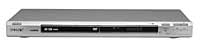
To convert this player for multi-region playback
1. In order for this hack to work, you will have to send an infra-red code to your player with a OneForAll remote such as the OneForAll 6 (or URC7560) or OneForAll 4 (or URC7740) or OneForAll 4 Digital, or One For All 5 Digital (or URC 7555) with the following instructions:
Press the DVD button
Hold down the Magic button until the unit performs a double LED flash
Configure your remote using the setup code 0 5 3 3
2. On your DVD recorder, using the official Sony remote, select the System-Menu option
3. On your DVD recorder, using the official Sony remote, select the Setup option
4. On your DVD recorder, using the official Sony remote, select the Options option
5. On your DVD recorder, using the official Sony remote, select the Command-Mode option
6. On your DVD recorder, using the official Sony remote, select the DVD1 option
7. On the official Sony remote, set the DVD1 option for the Command-Mode switch, under the sliding cover
8. Verify that both the official Sony remote control and your OneForAll remote control can power off and on your DVD player
9. Program your OneForAll remote with the following instructions:
Hold down the Magic button until the unit performs a double LED flash
Configure your remote using the setup code 9 9 4 or 0 0 9 9 4 if your remote only accepts 5 digit codes
Press the Magic button once
Configure your remote using the setup code 1 8 9 or 0 0 1 8 9 if your remote only accepts 5 digit codes
Press the 1 button once, a double LED flash should occur
10. Program your OneForAll remote with the following instructions:
Hold down the Magic button until the unit performs a double LED flash
Configure your remote using the setup code 9 9 4 or 0 0 9 9 4 if your remote only accepts 5 digit codes
Press the Magic button once
Configure your remote using the setup code 2 5 5 or 0 0 2 5 5 if your remote only accepts 5 digit codes
Press the 2 button once, a double LED flash should occur
11. Program your OneForAll remote with the following instructions:
Hold down the Magic button until the unit performs a double LED flash
Configure your remote using the setup code 9 9 4 or 0 0 9 9 4 if your remote only accepts 5 digit codes
Press the Magic button once
Configure your remote using the setup code 0 9 5 or 0 0 0 9 5 if your remote only accepts 5 digit codes
Press the 3 button once, a double LED flash should occur
12. Program your OneForAll remote with the following instructions:
Hold down the Magic button until the unit performs a double LED flash
Configure your remote using the setup code 9 9 4 or 0 0 9 9 4 if your remote only accepts 5 digit codes
Press the Magic button once
Configure your remote using the setup code 2 2 1 or 0 0 2 2 1 if your remote only accepts 5 digit codes
Press the 4 button once, a double LED flash should occur
13. Program your OneForAll remote with the following instructions:
Hold down the Magic button until the unit performs a double LED flash
Configure your remote using the setup code 9 9 4 or 0 0 9 9 4 if your remote only accepts 5 digit codes
Press the Magic button once
Configure your remote using the setup code 0 7 9 or 0 0 0 7 9 if your remote only accepts 5 digit codes
Press the 5 button once, a double LED flash should occur
14. Place your DVD player into Standby mode
15. Press the buttons 1, 2, 3, 4 and 5 on your OneForAll remote control, in order, one at a time
16. Your DVD player should show the words TIMER OK
17. Press the buttons 1, 2, 3, 4 and 5 on your OneForAll remote control, in order, one at a time
18. Your DVD player should return itself to Standby mode
19. Remove the batteries for significant period of time to wipe the programmed codes on your OneForAll remote